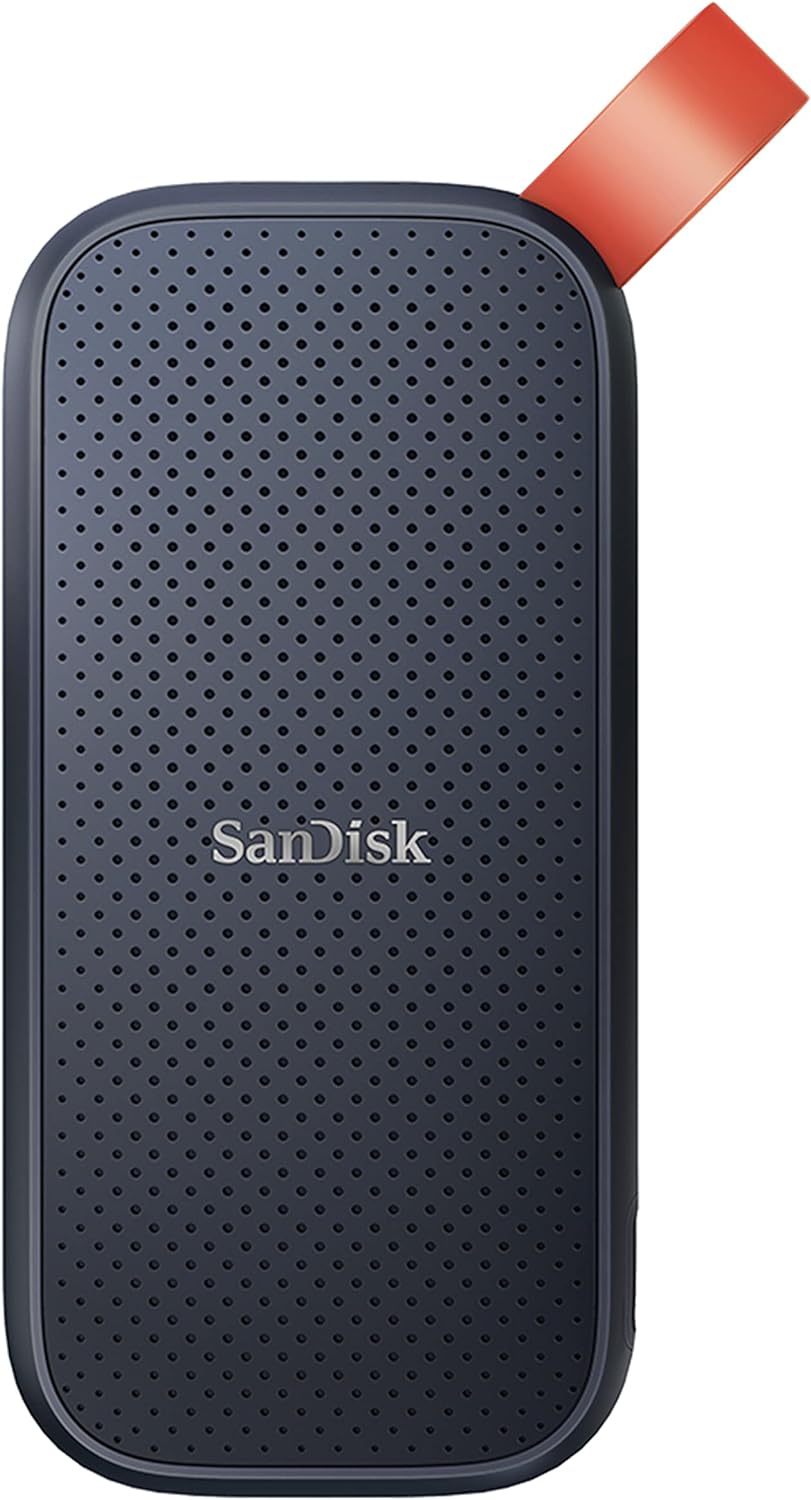
Best External SSDs (2026)
Portable and desktop external solid-state drives reviewed for speed, durability, and capacity.
5 products tested and compared
How to Choose an External SSD: A Complete Buying Guide
External SSDs have transformed portable storage. Where external hard drives once required careful handling, mains power for desktop models, and a tolerance for slow transfer speeds, a modern external SSD fits in a shirt pocket, survives the occasional drop, and can transfer a 4K video file faster than you can blink. But the market is cluttered with products making impressive-sounding claims, and knowing which specifications actually matter — and which are marketing noise — makes the difference between a drive that transforms your workflow and one that disappoints from day one. This guide explains what to look for and what to ignore.
What to Look For
USB 3.2 Gen 2 vs Thunderbolt
The interface connecting your SSD to your computer determines the ceiling on transfer speed, and understanding the naming is unfortunately complicated by years of inconsistent labelling from manufacturers and standards bodies alike.
USB 3.2 Gen 2 offers a theoretical maximum of 10 Gbps. In practice, with a good drive and cable, you will see real-world read speeds of around 900–1,000 MB/s — genuinely fast for most purposes. USB 3.2 Gen 2x2, a less common variant, doubles this to 20 Gbps, and some premium drives use it. USB4, which shares the physical USB-C connector, can reach 40 Gbps.
Thunderbolt 4 also operates at 40 Gbps and uses the same USB-C physical connector, but is a distinct protocol. Thunderbolt drives are faster and more consistent, but require a host computer with a Thunderbolt port — and not all USB-C ports are Thunderbolt. Thunderbolt drives cost noticeably more. Unless you are regularly moving very large files (video production, large dataset work) and your computer supports Thunderbolt, the premium is rarely justified.
For most users, a USB 3.2 Gen 2 drive is fast enough to work directly from without any perceptible slowdown.
Read and Write Speeds
Manufacturers prominently advertise read speeds because they are always higher than write speeds, and peak sequential speeds because they exceed sustained speeds. Neither figure reflects typical real-world performance.
Sequential read speed matters when you are copying a single large file — transferring a film or a large archive. Random read and write speeds matter far more for working directly from the drive — opening applications, accessing a database, editing a project with many small files. Random performance is almost never stated clearly on product listings, which is a significant omission.
Write speeds are consistently lower than read speeds, sometimes substantially so. A drive advertising 1,000 MB/s reads may deliver 500–600 MB/s writes. If you are backing up large quantities of data, write speed is the relevant figure.
Sustained speed — what the drive delivers after the first few gigabytes — can also differ from peak speed. Some drives use a small SLC cache that delivers very fast initial speeds, then drops significantly once the cache is full. If you are regularly transferring very large files (above 20–30 GB), look for evidence of sustained speed in independent reviews rather than relying on manufacturer claims.
NVMe vs SATA
Inside the enclosure, external SSDs use either NVMe or SATA technology. SATA SSDs have a theoretical limit of around 550 MB/s, meaning they are the bottleneck even on USB 3.2 Gen 2 connections. NVMe drives, connected via USB 3.2 Gen 2 or faster, can approach the full interface bandwidth.
For everyday backup and file transfer tasks, a SATA-based external SSD is perfectly adequate and will often be cheaper. For working directly from the drive on demanding tasks — video editing, large software projects — NVMe makes a meaningful difference. Check independent reviews to confirm whether a drive is NVMe or SATA internally; this is not always disclosed clearly by manufacturers.
IP Ratings and Durability
An IP (Ingress Protection) rating tells you how well a device resists dust and water. The number after IP has two digits: the first indicates dust protection (6 = fully dust-tight), the second indicates water protection (5 = protected against water jets, 7 = immersion to 1 metre for 30 minutes, 8 = immersion beyond 1 metre).
For a portable drive you carry in a bag, IP55 or better is a reasonable baseline — it means the drive will survive a splash or brief exposure to rain without issue. IPX8 means you can drop it in a puddle and retrieve it without data loss. If you work outdoors, in construction, or in environments where the drive might genuinely get wet, prioritise a high IP rating.
Drop resistance is also worth considering. Many manufacturers state a drop resistance rating (typically 1.5 to 2 metres onto a hard surface). Independent drop tests are worth seeking out if ruggedness is important to you.
Hardware Encryption
Some external SSDs offer hardware encryption — typically AES 256-bit — that encrypts data on the drive independently of your computer's software. This means data is inaccessible without the correct password even if the drive is physically removed from its enclosure. For drives containing sensitive personal or professional data, hardware encryption provides meaningful protection that software encryption (such as BitLocker or FileVault) does not, because it cannot be bypassed by removing the flash chips.
If data security matters to you — and for any drive used for professional data, it should — check whether the drive supports hardware encryption. Not all do, and the feature is not always prominently advertised.
Common Mistakes
Confusing USB Generations
The USB naming scheme is a genuine minefield. USB 3.0, USB 3.1 Gen 1, and USB 3.2 Gen 1 are all the same standard at 5 Gbps. USB 3.1 Gen 2 and USB 3.2 Gen 2 are also the same at 10 Gbps. Meanwhile, a USB-C port on a laptop might be USB 3.2 Gen 2, USB4, or Thunderbolt 4 — or, frustratingly, USB 2.0. Always check what interface your computer actually supports before buying a drive. Connecting a USB 3.2 Gen 2 drive to a USB 3.2 Gen 1 port will cap your speeds at 5 Gbps regardless of the drive's capability.
Overpaying for Speed You Cannot Use
A Thunderbolt SSD delivering 2,000+ MB/s is wasted on a computer with only USB 3.2 Gen 1 ports, a large-screen television used for media playback, or any workflow where the bottleneck is not storage speed. Before paying a premium for top-tier speeds, check your computer's port specifications and ask honestly whether your use case will benefit. For backing up photos and documents, working with spreadsheets, or storing a media library, a mid-range drive more than suffices.
Ignoring Cable Quality
The cable supplied with an external SSD directly affects the speeds you achieve. A USB-C cable that is not rated for USB 3.2 Gen 2 will cap performance even if the drive and port both support it. Many manufacturers include adequate cables, but some budget drives include cables that limit performance. If you replace the included cable, check that the replacement is rated for the interface speed you need. For Thunderbolt, only use cables explicitly rated for Thunderbolt — generic USB-C cables will not deliver Thunderbolt speeds.
Price Tiers
Budget: Under £80
At this price point, you will typically find SATA-based drives or entry-level NVMe drives with modest sequential speeds. Expect read speeds in the 500–700 MB/s range and no IP rating or modest drop resistance only. Capacities at this price usually top out at 500 GB to 1 TB. For routine backup tasks and file transfer, these drives are entirely serviceable. Avoid drives from entirely unknown brands with no verifiable independent reviews — the SSD market attracts a significant number of counterfeit and misrepresented products, particularly on marketplace platforms.
Mid-Range: £80–£110
This range covers capable NVMe drives with USB 3.2 Gen 2 interfaces delivering real-world reads of 800–1,000 MB/s, often with at least IP55 protection and 1–2 m drop resistance. Capacity reaches 1–2 TB at reasonable prices. These are genuinely good all-round drives suitable for active project work, not just backup. For most users, the mid-range is where the value lies.
Premium: £110+
Premium drives offer Thunderbolt interfaces, very high sustained speeds, hardware encryption, high IP ratings (IP68), and maximum build quality. At 2 TB and above, prices climb into this tier even for capable mid-range drives. The premium is justified for professional video workflows, large dataset access, or any situation where maximum speed, security, or ruggedness is a non-negotiable requirement.
Specific Advice for Your Situation
Backup vs Active Work Drive
If you are using the drive primarily for backup — Time Machine, a secondary backup copy, or periodic data archiving — speed matters much less than reliability and capacity. A SATA-based drive with a strong reputation for long-term reliability is an excellent backup drive. If you are working directly from the drive — running a project, editing media, accessing a large library — prioritise NVMe and a USB 3.2 Gen 2 or faster interface.
Mac or PC?
External SSDs work with both platforms, but formatting matters. ExFAT is cross-compatible but has known reliability limitations. APFS is Mac-optimised and excellent for Time Machine and Mac-only workflows. NTFS is Windows-native and read-only on Mac without third-party software. Most drives ship in ExFAT or NTFS and can be reformatted. If your drive will be used exclusively with a Mac, reformatting to APFS (for HFS+ Time Machine compatibility) or APFS is advisable. For cross-platform use, ExFAT or a cross-platform utility is your best option.
If you are on Apple Silicon and have Thunderbolt ports, a Thunderbolt SSD will make the most of your hardware — but USB 3.2 Gen 2 drives remain excellent value for everyday use.
Do You Need Ruggedness?
For a drive that will live on your desk and travel occasionally in a padded bag, a standard portable SSD without a specific IP rating is fine. For a drive that will be used outdoors, on location, in a workshop, or on worksites, spend the extra for a proper IP68-rated model. The cost difference is modest; the peace of mind is significant. Outdoor workers, photographers shooting in challenging conditions, and field researchers should treat ruggedness as a primary requirement rather than an optional extra.
Final Thoughts
An external SSD is a straightforward purchase once you understand the specifications. Match the interface to your computer's actual capabilities, choose NVMe if you work directly from the drive, and verify ruggedness requirements against your actual use. Do not be misled by headline sequential read speeds that exceed what your ports can support, and always check independent reviews for sustained speed and long-term reliability data before committing. A good external SSD should serve you reliably for years — choose carefully and it will.
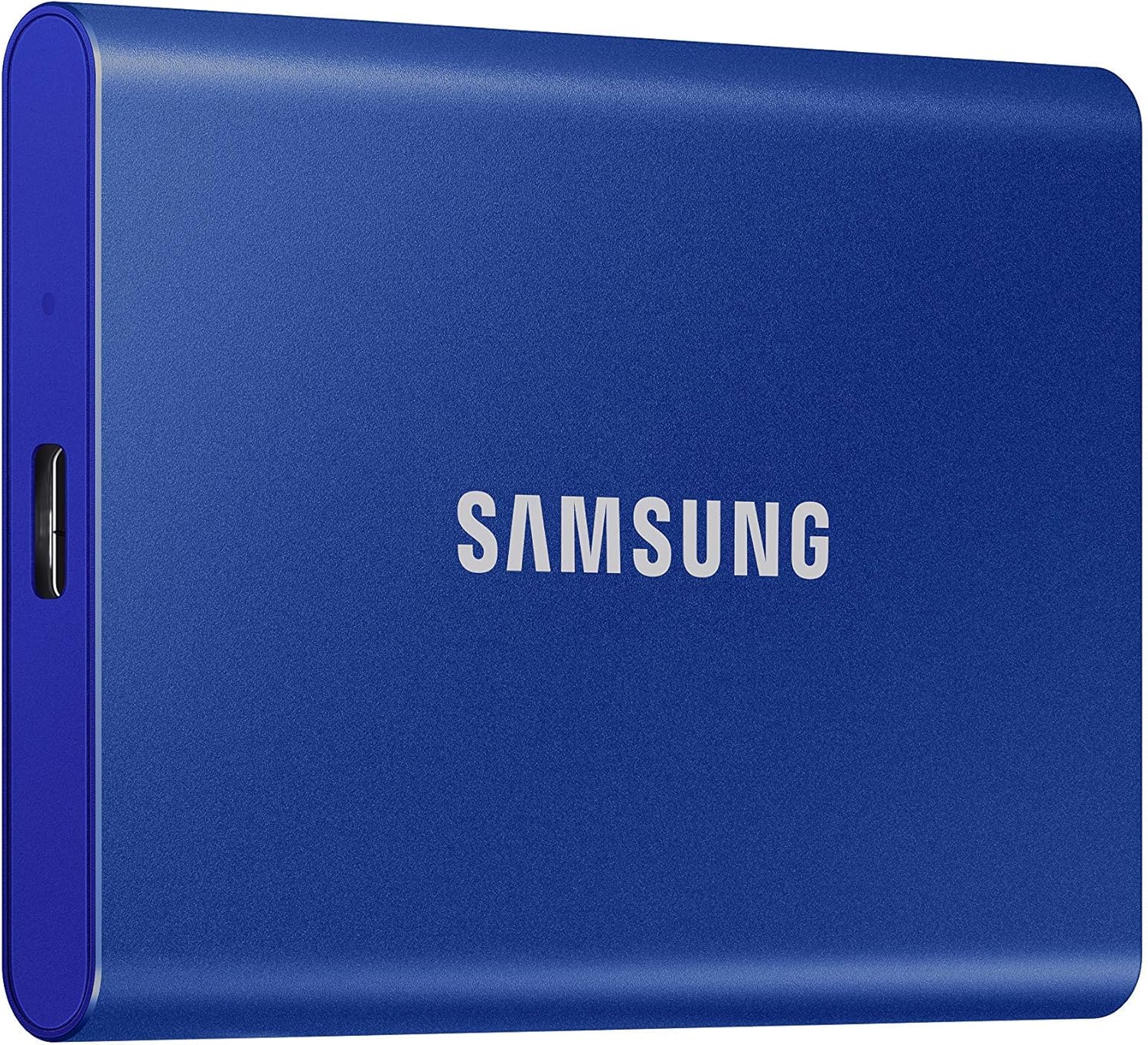
Samsung
Samsung T7 Portable SSD 1TB Blue
The T7 delivers reliable 1050MB/s speeds and good build quality, but faces stiff competition from cheaper alternatives offering identical performance. A sensible choice for Samsung loyalists, though not the best value in its class.