Best Webcams (2026)
HD and 4K webcams for remote work, streaming, and video conferencing.
3 products tested and compared
The Complete Buying Guide to Webcams
A decent webcam has gone from a niche accessory to an essential piece of kit for anyone who works remotely, attends regular video calls, streams content, or teaches online. The built-in cameras on most laptops remain underwhelming — grainy in anything other than perfect light, with narrow fields of view and microphones that pick up every keyboard click and room echo.
An external webcam, even a modestly priced one, transforms how you appear on calls. But the market is full of misleading specifications and marketing language that bears little relationship to real-world performance. This guide explains what the numbers actually mean, where to spend your money, and — crucially — why the camera itself is often less important than the environment around it.
What to Look For
Resolution: 1080p vs 2K vs 4K
Resolution is the most prominently advertised specification and, arguably, the least important one for most buyers.
Standard HD video calls — Zoom, Teams, Google Meet — are delivered at 720p or 1080p regardless of what your camera can capture. The platform compresses the video heavily before transmitting it. A 4K webcam does not mean your colleagues see you in 4K; they see the same compressed 720p or 1080p stream everyone else transmits.
Where higher resolution does matter:
- Streaming to a platform like YouTube or Twitch, where you have more control over output quality.
- Recording video content for later editing, where you want the highest source quality.
- Cropping and reframing in software, where extra resolution gives you headroom to zoom in digitally without losing sharpness.
For standard video conferencing, 1080p at 30fps is entirely sufficient. If you are spending extra money specifically to get a sharper image on calls, that money is better spent elsewhere — see the section on lighting below.
Sensor Size
Sensor size matters more than resolution. A larger sensor captures more light, which means better performance in low-light conditions and a more natural depth of field. Consumer webcams use relatively small sensors compared to dedicated cameras, but within the webcam category there is meaningful variation.
Manufacturers rarely advertise sensor size prominently, but it is worth looking for in reviews. A camera with a larger sensor will outperform a higher-megapixel camera with a smaller sensor in virtually every real-world condition.
Autofocus Speed and Accuracy
A webcam that constantly hunts for focus, or that loses lock when you lean forward or glance to the side, is genuinely distracting on calls. Look for webcams with phase-detection autofocus rather than contrast-detection autofocus — phase detection is faster and more decisive. Reviews from users who have tested autofocus behaviour during motion are more reliable than manufacturer claims.
Fixed-focus webcams (ones with no autofocus at all) can be perfectly adequate if you always sit in the same position at a consistent distance. They eliminate the hunting problem entirely, though they require you to be set up correctly for the camera''s fixed focal distance.
Field of View
Field of view (FoV) is measured in degrees and determines how much of the scene the camera captures.
- 65–75 degrees — a tight, portrait-style frame that keeps the focus on your face. Good for professional calls where you want a clean, focused shot.
- 78–90 degrees — the most common range, capturing head and shoulders with some background. Natural-looking for most use cases.
- 90–110 degrees — a wide field that captures more of the room. Useful for showing a whiteboard, including multiple people, or working in a standing setup where you move around.
A wider field of view is not automatically better. A very wide lens distorts faces at the edges of the frame, making people look stretched. It also reveals more of your room, which may not be ideal for professional calls. Match the FoV to your setup and how far you sit from the camera.
Low-Light Performance
Unless you have professional studio lighting, low-light performance will be the deciding factor in image quality for most people. A webcam with excellent low-light capability will produce a clean, natural image in a normally lit home office. A poor performer will be grainy, washed-out, or so aggressively auto-brightened that colours look unnatural.
Look for cameras with larger apertures (lower f-number, e.g. f/2.0 rather than f/2.8) and review third-party tests in realistic home office lighting rather than the bright, controlled demonstrations manufacturers use in their own marketing.
Built-in Microphone Quality
Most webcams include one or more built-in microphones, and the quality varies enormously. A poor microphone produces echoey, hollow-sounding audio with noticeable background noise — it makes a bad impression on calls regardless of how sharp the video is.
If your laptop''s built-in microphone is acceptable, a webcam''s microphone is likely to be no better unless you specifically look for models with noise-cancelling or beamforming microphone arrays. The best investment for call audio is a separate USB microphone or a headset — more on this below.
Privacy Shutter
A physical privacy shutter — a mechanical cover that slides over the lens — is a small but valuable feature. It eliminates any possibility of accidental video transmission, regardless of software settings. Given that the webcam sits open-facing on your monitor all day, a physical shutter is a sensible precaution. Many mid-range and premium webcams now include one.
Mount Compatibility
Most webcams clip to a monitor or laptop lid using an adjustable clip. Check that the clip will accommodate your monitor''s bezel thickness — some very thin monitors or laptop lids are tricky to grip securely. Some webcams also include a tripod thread, allowing you to position the camera separately from your display, which gives significantly more flexibility for angle and framing.
Common Mistakes to Avoid
Overpaying for 4K when your calls are 720p
As discussed above, video call platforms do not transmit 4K. If your primary use is video conferencing, the resolution uplift from 1080p to 4K delivers essentially no benefit. You are paying a significant premium for a specification that the platform will immediately compress away. Spend that money on better lighting instead.
Ignoring microphone quality
Many buyers focus entirely on video and overlook audio. On a video call, people forgive a slightly soft image far more readily than they forgive muddy, echoey audio. Check what reviewers say about the built-in microphone, and consider a dedicated microphone or headset if audio quality is important.
Assuming the camera will fix a bad environment
This is the most important point in this guide. No webcam, regardless of price, will overcome poor lighting. A £200 camera in a room lit only by a window behind you will produce a silhouette. A £40 camera facing a window or a ring light will produce a clear, well-exposed image.
Before spending heavily on a webcam, consider:
- Moving your desk so the main light source (window, lamp) is in front of you, not behind.
- Adding a simple LED ring light or a lamp positioned to your side.
- Choosing a tidier or more neutral background, or using a virtual background.
These environmental changes cost less than a premium webcam and produce more dramatic improvements than upgrading from mid-range to high-end hardware.
Bad placement
Camera angle matters for how you appear on calls. A camera positioned below eye level — sitting on a desk rather than on top of the monitor — shoots up your nose and produces an unflattering angle. Mount the camera at or very slightly above eye level. The difference in perceived professionalism is substantial.
Price Tiers
Budget (under £45)
Entry-level webcams in this bracket typically offer 1080p at 30fps, fixed-focus or basic autofocus, and passable built-in microphones. Performance in good lighting is reasonable; low-light behaviour varies. They are a solid upgrade over a laptop''s built-in camera for straightforward video calls and will handle basic home office use without complaint. Not recommended for streaming or content creation where image quality is more important.
Mid-range (£45–£80)
This is where most buyers will be well served. Mid-range webcams offer improved sensor quality, faster autofocus, better low-light performance, and more thoughtful microphone arrays. Many include a privacy shutter. Build quality is noticeably better — the clip mechanism is more secure, the cable is more durable. If video calls are an important part of your work and you want to look professional, the mid-range is the right bracket.
Premium (£80 and above)
Premium webcams add 4K resolution (useful for content creation), significantly larger sensors with superior low-light and depth-of-field characteristics, and AI-powered features like auto-framing (the camera tracks you as you move) and background removal. Worthwhile for streamers, content creators, or anyone recording video for publication. For standard video calls, the improvements over mid-range are marginal relative to cost.
Specific Advice for Your Situation
Video calls only, or streaming too?
For video calls exclusively, a mid-range 1080p webcam is sufficient. Save money here and spend it on a better microphone or lighting. For streaming and content creation, the higher resolution and better sensors of premium webcams justify the additional cost, particularly if you record in 4K and downscale for delivery.
What are your lighting conditions?
Be honest. Most home offices are lit by a combination of ceiling lights and natural light that shifts throughout the day. If you frequently take calls in low light — evening calls, a poorly lit room, a windowless office — low-light performance should be a top priority, and it is worth moving up the price range to get a camera with a larger sensor and wider aperture.
If you have good, consistent lighting in front of you, a budget or mid-range camera will look excellent.
Do you already use an external microphone?
If you have a dedicated USB microphone, a headset, or an interface with a proper microphone, the built-in mic on your webcam does not matter at all. You can focus your budget entirely on image quality. If you are relying on the webcam for both audio and video, weigh microphone quality more heavily in your decision.
Summary
For most people attending regular video calls, a solid mid-range 1080p webcam combined with decent lighting is the optimal investment. Do not overpay for 4K unless you create content beyond calls. Prioritise sensor quality and autofocus over resolution. Check that the microphone performs acceptably if you do not have a separate audio solution. And before buying anything, spend an afternoon repositioning your desk lamp — it will do more for your appearance on calls than any camera upgrade.
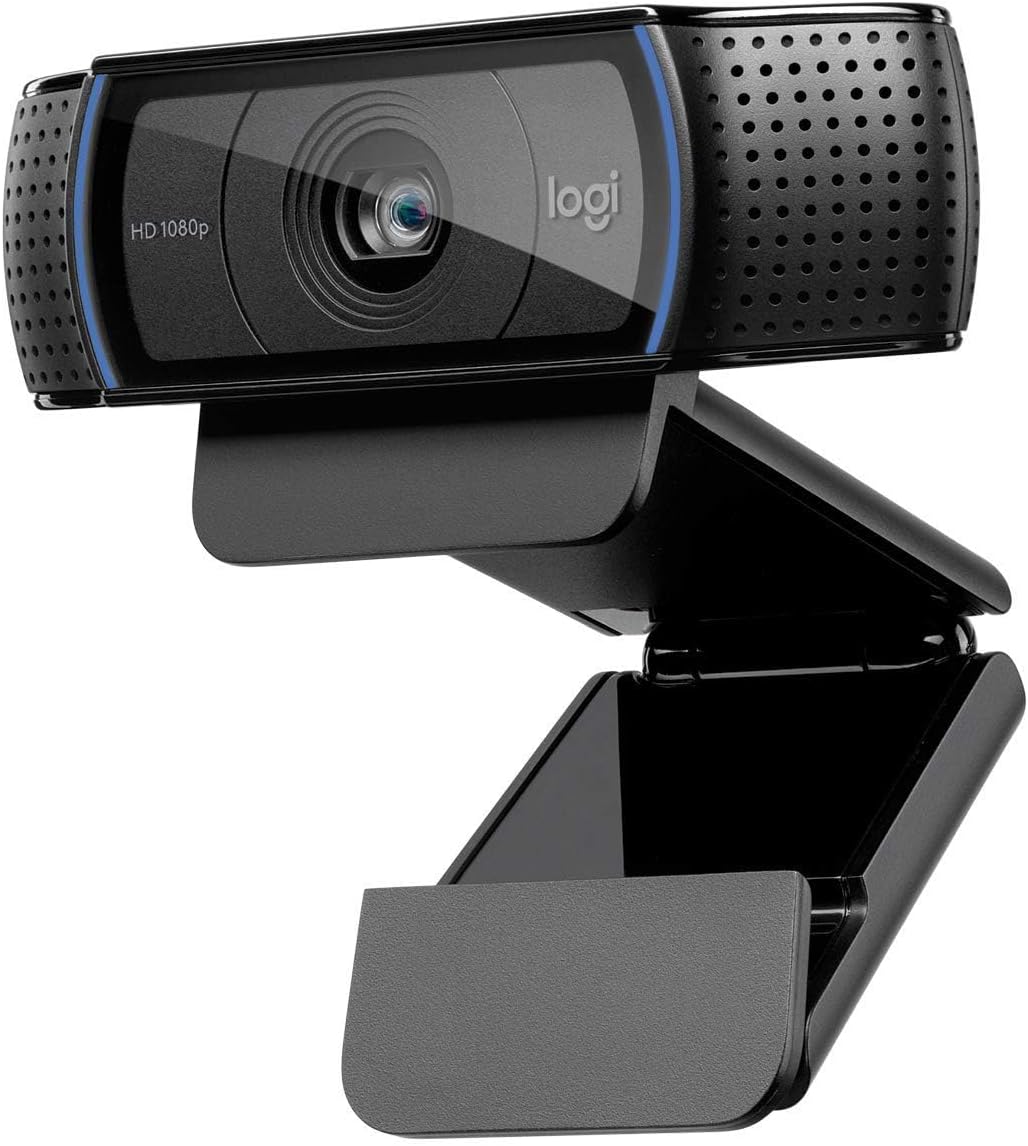
Logitech
Logitech C920 HD Pro Webcam Full HD 1080p
The Logitech C920 delivers 1080p video and excellent dual microphones, making it a solid choice for regular video conferencing. It's proved reliable for millions of users, though newer cameras offer better resolution for less.

